FAQ
Frequently Asked Questions
Section titled “Frequently Asked Questions”Cloud Drive Authorization Failure
Section titled “Cloud Drive Authorization Failure”Check if a network proxy is enabled. Alternatively, open the terminal and refer to #View DevTools Error Logs.
No Files Synced to New Devices & No Repository Folder on Cloud Drive
Section titled “No Files Synced to New Devices & No Repository Folder on Cloud Drive”Verify if the repository name is valid. For details on Baidu Cloud Drive filename symbol restrictions, see this link.
Partial File Sync Failure
Section titled “Partial File Sync Failure”- Check if the file path contains emojis—emojis are considered invalid characters.
- In Automatic Mode, sync failures may occur due to network changes. The system will automatically retry in the next sync cycle.
- Try switching to Controlled Mode for manual sync. If manual sync still fails, submit an issue on Github or Gitee, or discuss it in the community group.
How to Collect Debug Logs for Bug Reports
Section titled “How to Collect Debug Logs for Bug Reports”Enable the debug file logger in Settings → Maintenance & Debug → Debug File Logging, reproduce the issue, then click Export Report and paste it into a GitHub Bug Report.
Self-Diagnosis Guide
Section titled “Self-Diagnosis Guide”The sync experience depends on external factors, including:
- Network stability (affects sync stability).
- Network bandwidth (affects sync speed).
- Network topology (affects peer-to-peer connection capability).
- Cloud drive account tier (affects download speed).
Sync Vault users can self-diagnose sync issues as needed.
graph LRQ2(Slow Sync Speed)Q1(File Sync Errors)A1(Run sync speed tests and select the optimal cloud drive)A2(Obtain diagnostic overview - check errors)A3(View latest sync report - get detailed error info)Q1-->A2 & A3Q2-->A1Obtain Diagnostic Overview
Section titled “Obtain Diagnostic Overview”Go to the Repository Info settings tab, click the “Diagnose” button, and view the diagnostic information, which includes the following sections:
-
System Information — Displays Obsidian version, Sync Vault version, and current system type.
{"platform": "macOS","obsidianVersion": "Obsidian Repository - Obsidian v1.9.12","pluginVersion": "2.1.0"} -
Repository Information — Total number of files and the cloud path corresponding to the repository.
{"name": "Obsidian Repository","path": "/apps/obsidian/Obsidian Repository","totalFiles": 513,"configPath": "/apps/obsidian/Obsidian Repository"} -
Current Configuration — Plugin-related settings.
{"ignorePattern": "^(New Folder).*$","fileSizeLimit": 100,"encryptMode": false,"syncThemes": true,"syncPlugins": true,"showHidden": true} -
Sync Status — Includes current sync mode, cloud drive, and authorization code expiration time.
{ "mode": "restricted", "isLiveMode": true, "cloudDisk": "baidu", "tokenValid": true, "tokenExpiry": "2026/8/1 11:40:15", "lastSyncTime": null}-
Sync Statistics — Records last sync time, total sync attempts, and recent errors.
{"lastSyncTime": null,"totalSyncTimes": 0,"recentErrors": [],"totalFilesProcessed": 0} -
Recent Errors
{"recentErrors": []}
View the Latest Sync Report
Section titled “View the Latest Sync Report”During cloud drive sync, users can access the detailed record of the latest sync. For specific operations, refer to View Sync Report.
Test Sync Speed
Section titled “Test Sync Speed”- Go to Advanced Features > Debug.
- Locate the “Cloud Drive Performance” section and click the “Perf” button on the right. The following interface will pop up:400
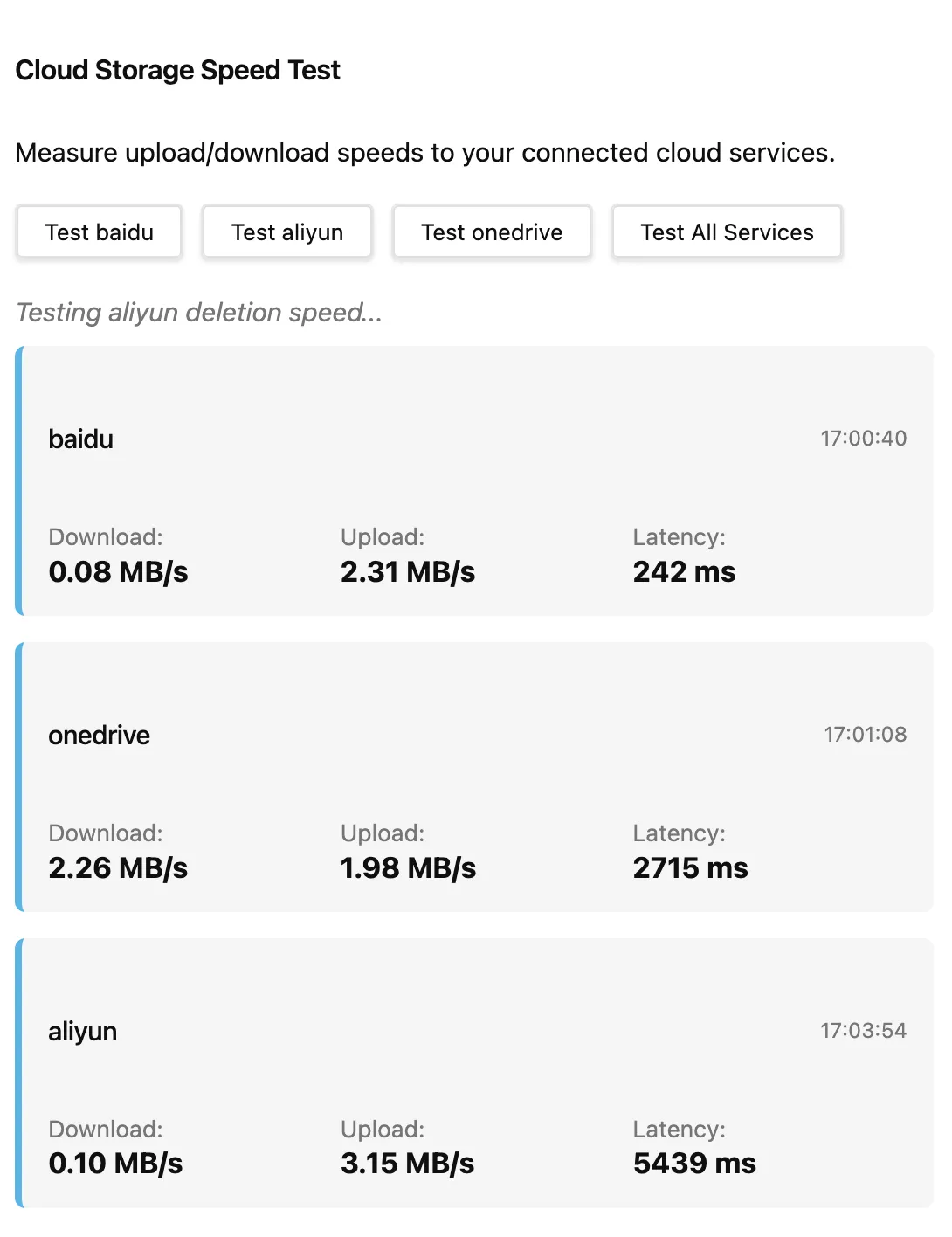
- Click the test button for the corresponding cloud drive to test its speed. The image below shows the speed experience for non-cloud drive members on public mall WiFi:
400

- Download Speed: File download speed in the current environment.
- Upload Speed: File upload speed in the current environment.
- Latency: Access latency of the cloud drive API, which is roughly equivalent to the minimum latency required for one sync.
For detailed sync performance analysis of each cloud drive, click here.
View DevTools Error Logs
Section titled “View DevTools Error Logs”Open the Obsidian Developer Tools to check for errors:
- macOS: Press
cmd+option+i - Windows: Press
ctrl+shift+I
Debug File Logging
Section titled “Debug File Logging”A built-in diagnostic tool that persists runtime logs for troubleshooting.
Enable
Section titled “Enable”Settings → Maintenance & Debug → Debug File Logging — toggle on.
File Structure
Section titled “File Structure”.sync-vault-debug/├── debug-2026-07-15.log # Full daily log└── session-20260715T132100.log # Per-sync operation recordDebug Header
Section titled “Debug Header”Each log file begins with a header containing: system info, vault info, sync config, network status, and plugin State health.
Export Report
Section titled “Export Report”Click Export Report in the settings page to generate a compressed report — paste it directly into a GitHub Issue.
Privacy
Section titled “Privacy”Logs are stored locally only and are added to the sync ignore list — they will never be uploaded to cloud storage.
Workflow
Section titled “Workflow”- Enable logging
- Reproduce the issue
- Export the report
- Create a Bug Report on GitHub
- Paste the exported report and submit