Video Playback
Sync Vault streams videos straight from your cloud drive: the video stays in the cloud, is fetched on demand during playback, and never takes up local storage or download time.
When there are many video files in your vault, you can use Ignore Files to prevent video files from being synchronized to your device.
NOTEVersions & quality
- Online video playback for Baidu Netdisk and Alibaba Cloud Disk is supported since 0.8.5; Quark Disk on desktop since 1.9.0.
- Videos play at the highest available quality by default, and you can switch resolutions in the player.
- iOS supports native HLS playback; mobile playback issues were fixed in 1.10.0.
Method 1: Embed playback in a note
Section titled “Method 1: Embed playback in a note”Insert a cloudvideo code block in a note to embed a player. The easiest way is to copy it from the cloud drive browser:
- Open the cloud drive browser (search Open Cloud Drive Explorer in the command palette).
- Right-click a video file and choose Copy Cloud Media Block(复制云端媒体块).
- Paste it into your note, switch back to Reading view, and play.
The copied block looks like this:
```cloudvideobdcloud:///videos/demo.mp4 | demo.mp4```Each line of the block is one video, in the format <protocol>://<cloud path> | <video name> | <start time>; the last two fields are optional:
- Cloud path: the full path of the video in your cloud drive. Copy Cloud Media Block adds the protocol and path for you.
- Video name: shown in the player; when omitted, items are numbered instead (Track 1, Track 2, …).
- Start time: format
[h:]m:s, e.g.00:12:34; playback starts from that point.
Write multiple lines to build a playlist — files from different cloud drives can be mixed:
```cloudvideobdcloud:///movies/Part One.mp4 | Part Onealicloud:///series/S01E01.mkv | Episode 1```Protocol prefixes available in the code block:
| Cloud drive | Protocol prefix |
|---|---|
| Baidu Netdisk | bdcloud:// (baidu:// also works) |
| Alibaba Cloud Disk | alicloud:// (aliyun:// also works) |
| Quark Disk | quark:// |
| 115 | onelife:// |
| OneDrive | onedrive:// |
| Web video URLs | web:// or https:// |
| Local videos in your vault | no protocol, or local:// |
TIPIn Obsidian’s file explorer, audio/video VFS stubs (e.g.
demo.osvc.mp4) also offer Copy Cloud Media Block in the right-click menu.
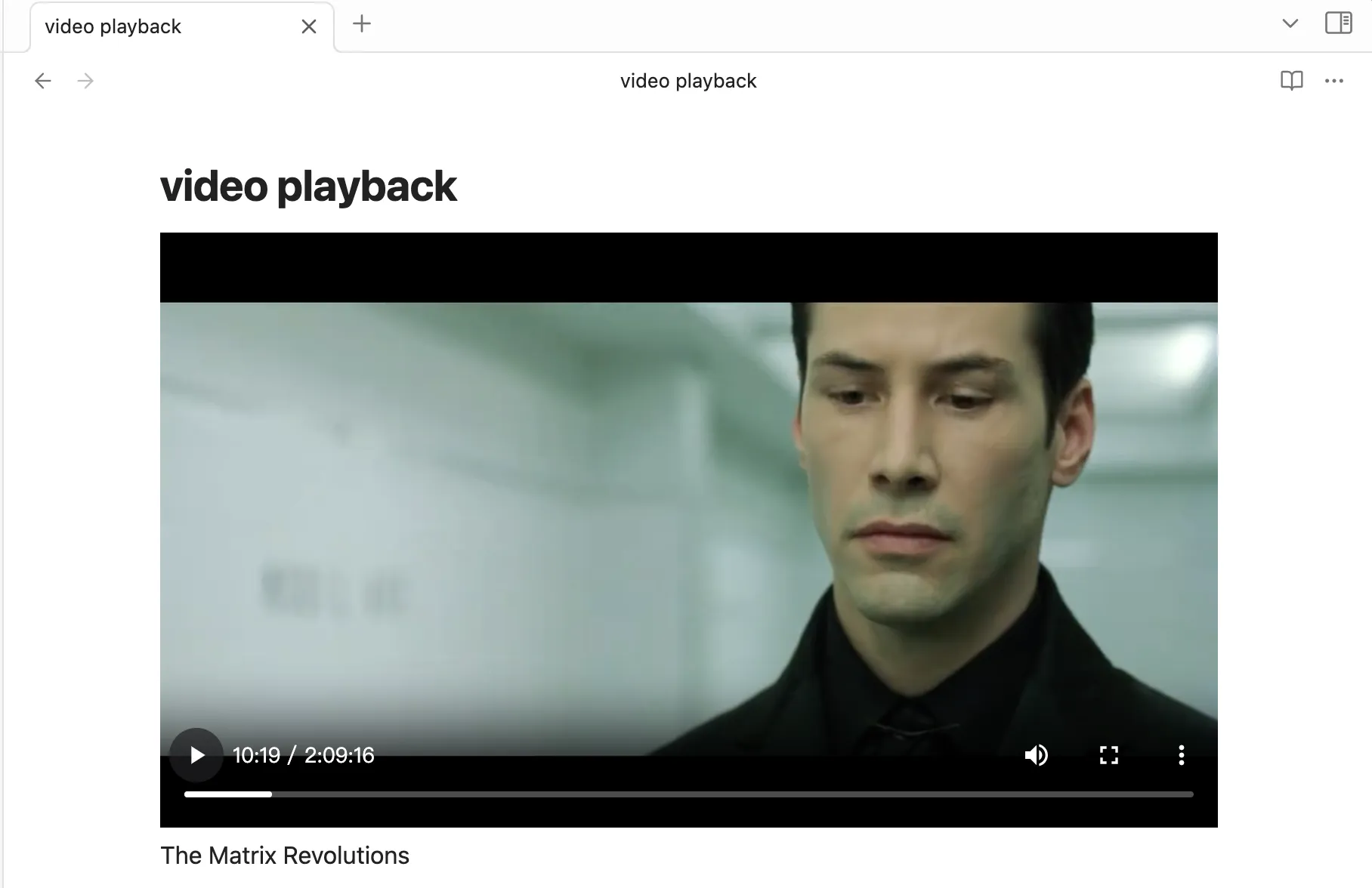
The Matrix Revolutions
Method 2: Play right from the cloud drive browser
Section titled “Method 2: Play right from the cloud drive browser”Click a video file in the cloud drive browser and it opens in a dedicated player tab — handy when you just want to watch something before deciding whether to take notes. Right-clicking a video also lets you:
- Add to Playlist(添加到播放列表): queue the video for playback;
- Add All Videos in Folder(批量添加同目录视频): add a whole folder at once and play through it in order.
Method 3: Cloud hyperlinks
Section titled “Method 3: Cloud hyperlinks”Right-click a video in the cloud drive browser and choose Copy File Link(复制文件链接). Paste it into a note and click the link to open the video in a player tab. For the full picture of cloud hyperlinks (images, PDFs, embedded text, and more), see Cloud Hyperlinks & Streaming.
Playback progress & resume
Section titled “Playback progress & resume”- Playback position is saved automatically every 60 seconds. The Video Notes widget on the dashboard lists recently played videos with where you left off — click one to resume.
- For Alibaba Cloud Disk, progress is also written back to the drive’s own playback records, so you can continue on another device signed in to the same drive.
Interactive timestamps
Section titled “Interactive timestamps”- While a video is playing, run Insert video timeline note from the command palette to insert a
[00:12:34](obsidian://cloud-video-seek?...)link at the cursor. Clicking the link jumps the player to that moment; if no player is open on the page, one opens and seeks there. - AI-generated video summaries from Baidu Netdisk or Quark Disk can be pasted into a note, selected, and converted into clickable timestamp links with the Convert External Video Notes (Quark/Baidu AI) command.